Installation Instructions
On this page you find the relevant installation instructions for this course. Please come with all components installed to the first class.
1 Your OS
You need an up to date operating system. If you have not updated this in a while - now is the moment to do so. 🍜
After you are back, make sure you have all tools needed for modern scientific computing on board. There are 2 cases:
- You have a windows computer: We need to do some work here.
- You do not have a windows computer: Relax.
1.1 Windows
You need at least windows 10, better windows 11.
You need to install the Windows Subsystem for Windows (WSL) version 2, i.e. WSL2. You should never just do what I say, but instead consult the official documentation. Therein, you will see that installing this is as easy as typing
# start your PowerShell as Administrator
# (right click on PowerShell...)
wsl --install
# choose all the default settings (in particular, install the Ubuntu Distribution)
# restart your computer after this is completed.
After successful installation and restart, have a look at your file browser. There is a like a second filesystem now - the one for linux!
Start the Ubuntu terminal by typing “Ubuntu” in your Windows Start Button.
In the running terminal type commands, followed each time by
enter:pwd # tells you where you are whoami # tells you who you are hostname # tells you the name of this host
1.2 *nix
Computers not running a Windows OS are typically grouped together under the term *nix (star nix) - i.e. most current unix based OS out there. This includes MacOS.
If you have one of those, you have it easier.
1.2.1 MacOS
Open the terminal application and type
git --versionif that throws an error, type
xcode-select --install1.2.2 Ubuntu
If you have any Linux distribution (Ubuntu, RedHat etc), just make sure you have the main tools installed.
# type this and enter
which git make gcc python3
You could then install any missing packages with
sudo apt update
sudo apt install -y build-essential git python3 python-is-python3
2 Install Julia
2.1 via juliaup
The best way to install julia (allows for multiple installed versions and will always alert to new releases) is via the instructions at juliaup - please follow those for your OS.
2.2 via direct download
you can equally well download the current release for your OS from here
3 Run Julia
After installing, make sure that you can run Julia. If you installed via juliaup, you should be able to start julia from your command line now by typing julia and hitting enter. Otherwise just launch the julia app from your Applications folder.
Make sure that you are able to launch Julia and calculate 1+1 before proceeding!
4 Install Pluto
Next we will install the Pluto notebook that we will be using during the course. Pluto is a Julia programming environment designed for interactivity and quick experiments.
Open the Julia REPL. This is the command-line interface to Julia, similar to the previous screenshot.
Here you type Julia commands, and when you press ENTER, it runs, and you see the result.
To install Pluto, we want to run a package manager command. To switch from Julia mode to Pkg mode, type ] (closing square bracket) at the julia> prompt:
julia> ]

(@v1.12) pkg>
The line turns blue and the prompt changes to pkg>, telling you that you are now in package manager mode. This mode allows you to do operations on packages (also called libraries).
To install Pluto, run the following (case sensitive) command to add (install) the package to your system by downloading it from the internet. You should only need to do this once for each installation of Julia:
(@v1.12) pkg> add PlutoThis might take a couple of minutes, so you can go get yourself a cup of tea!

You can now close the terminal.
5 Use a modern browser: Mozilla Firefox or Google Chrome
We need a modern browser to view Pluto notebooks with. Firefox and Chrome work best.
5.1 Second time: Running Pluto & opening a notebook
Repeat the following steps whenever you want to work on a project or homework assignment which requires Pluto.
5.1.1 Start Pluto
Start the Julia REPL, like you did during the setup. In the REPL, type:
julia> using Pluto

julia> Pluto.run()
The terminal tells us to go to http://localhost:1234/ (or a similar URL). Let’s open Firefox or Chrome and type that into the address bar.

If you’re curious about what a Pluto notebook looks like, have a look at the sample notebooks. Samples 1, 2 and 6 may be useful for learning some basics of Julia programming.
If you want to hear the story behind Pluto, have a look a the JuliaCon presentation.
If nothing happens in the browser the first time, close Julia and try again.
5.1.2 Opening a notebook from the web
This is the main menu - here you can create new notebooks, or open existing ones. Our homework assignments will always be based on a template notebook, available in this GitHub repository. To start from a template notebook on the web, you can paste the URL into the blue box and press ENTER.
For example, homework 0 is available here. Copy this link (right click -> Copy Link), and paste it into the box. Press ENTER, and select OK in the confirmation box.
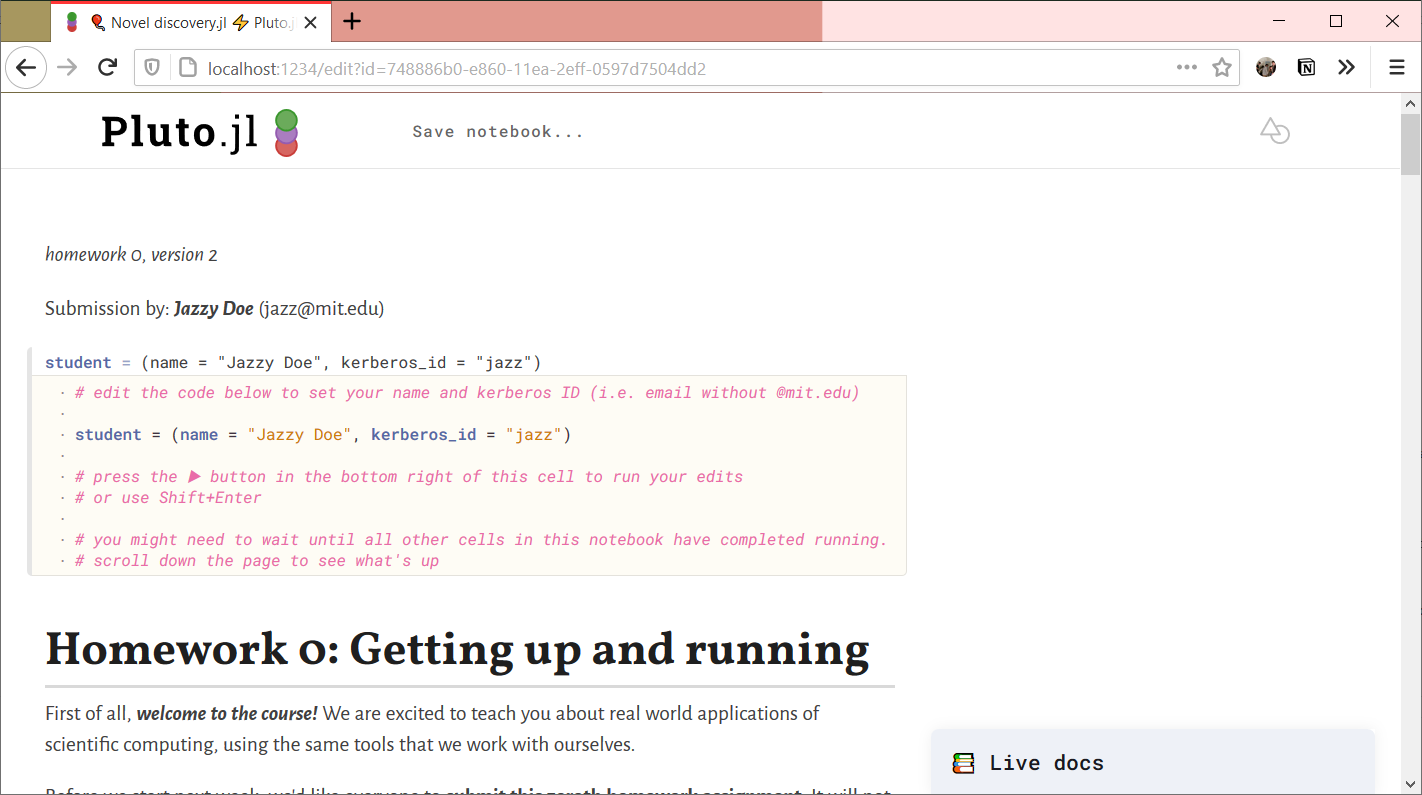
The first thing we will want to do is to save the notebook somewhere on our own computer; see below.
5.1.3 Opening an existing notebook file
When you launch Pluto for the second time, your recent notebooks will appear in the main menu. You can click on them to continue where you left off.
If you want to run a local notebook file that you have not opened before, then you need to enter its full path into the blue box in the main menu. More on finding full paths in step 3.
6 Saving a notebook
We first need a folder to save our homework in. Open your file explorer and create one.
Next, we need to know the absolute path of that folder. Here’s how you do that in Windows, MacOS and Ubuntu.
For example, you might have:
C:\\Users\\fonsi\\Documents\\18S191_assignments\\on Windows/Users/fonsi/Documents/18S191_assignments/on MacOS/home/fonsi/Documents/18S191_assignments/on Ubuntu
Now that we know the absolute path, go back to your Pluto notebook, and at the top of the page, click on “Save notebook…”.

This is where you type the new path+filename for your notebook:

Click Choose.
8 Install VSCode
VSCode is a very powerful text editor which we will use extensively. Get the version for your OS here.
© Florian Oswald, 2026